Open orders picking packing and sending
Department: Warehouse dispatch. Find a confirmed customer order, collect and pack the goods, and record the quantity sent. Sales creates and confirms the order; Procurement sources shortages; Warehouse receiving records supplier deliveries.
Before you start
Your account needs access to the Sales Order and permission to perform the warehouse actions. Scanner writes require an Editor seat. Stock-item shipment also requires stock-management permission and permission to change the Sales Order's state. If you can pick but cannot confirm shipment, ask the administrator to check the dispatch role's lifecycle permissions.
Use configured stock items for the stock-controlled dispatch flow. Shipment deducts physical stock and releases the shipped reservation for those items. Other articles can have their progress recorded, but the same physical-stock reconciliation must not be assumed; agree the supported process with the administrator.
1. Find an open Sales Order
Open Sales → Sales Orders and use the lifecycle-state column or its filter to find Confirmed orders. Open the order and check its delivery address, article quantities and Stock → Stock availability.
For a partly shipped order, arrange any missing goods and return it to Confirmed before continuing fulfilment. A confirmed reservation does not prove that every piece has physically arrived.
Read the quantities as cumulative totals
Ordered is the customer's total demand. Picked, Packed and Shipped are totals recorded so far. If 5 of 7 have shipped, the next delivery adds the remaining 2; it does not restart the counters at zero.
2. Print a warehouse list if needed
Select the Sales Order in Explorer, open Export, choose a template under Print Templates, and click PDF:
- Sales Order - Pick List - A4 Portrait shows ordered and cumulative picked quantities, without prices.
- Sales Order - Packing List - A4 Portrait shows ordered and cumulative packed quantities, without prices.
Both are whole-order checklists. They do not allocate articles to individual parcels or partial deliveries. Printing does not record a pick, pack or shipment. If the templates are absent, ask an administrator to rerun Sales Orders Configuration using the current Manage application.
3. Pick the articles
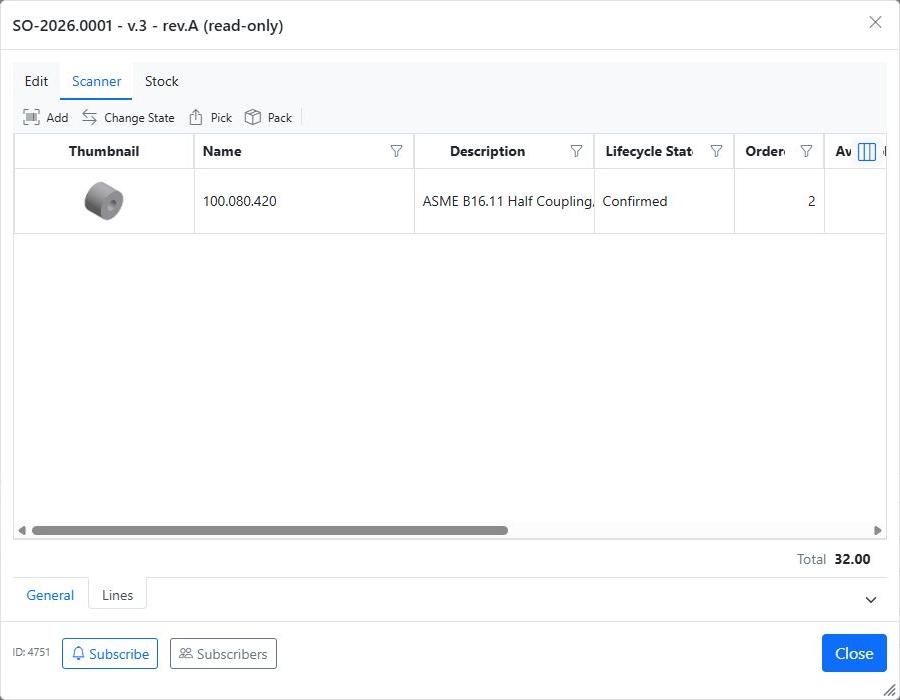
- Open the saved order's Lines tab and choose Scanner → Pick.
- Use the scanner dialog, or scan its QR code on a phone / choose Open on this device and sign in with an authorized workspace account.
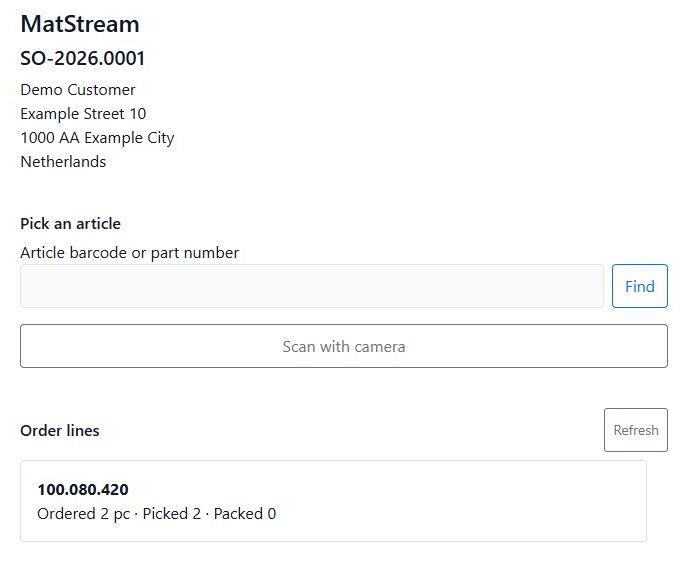
- Scan or enter the article's barcode or part number and click Find.
- Check the matched article, enter the quantity physically collected, and confirm Pick.
- Check the Order lines summary. Pick in batches if needed; picked quantity cannot exceed ordered quantity.
Check the physical source location
The scanner records an article quantity. It does not validate a shelf barcode or reserve the physical pick against a specific storage location. Verify the article and shelf yourself; a successful pick counter is not proof that received stock was available.
4. Pack the delivery
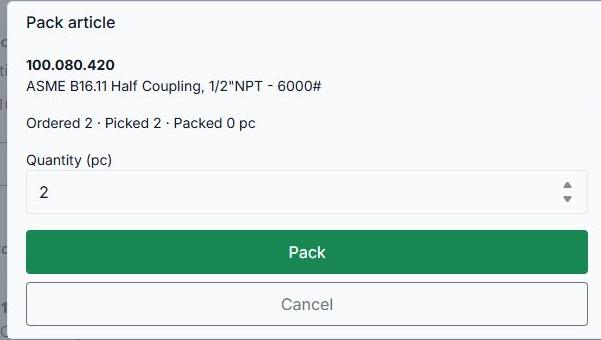
Choose Scanner → Pack on the Lines tab. Find the article, enter the additional quantity being packed, and confirm Pack. Check the delivery address and the physical contents. Packing cannot exceed the quantity picked.
Packed does not mean sent
When all pieces are packed, the scanner may say This order is complete or closed. That ends scanner work; you must still confirm shipment on the Sales Order.
The current packing flow stores cumulative line quantities, not individual parcel contents. Keep any parcel labels and carrier information through your agreed dispatch process.
5. Send and confirm shipment
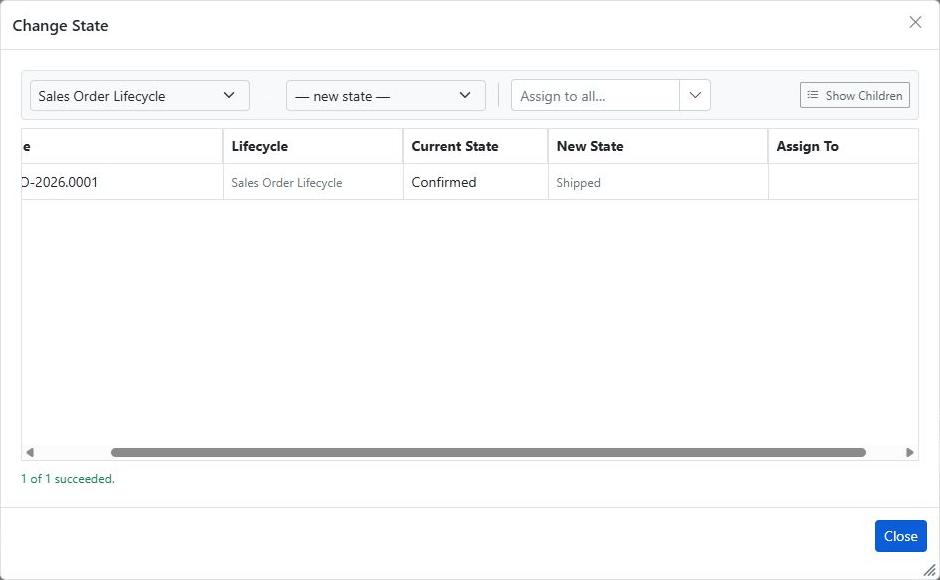
When the goods are being dispatched, close the scanner and order details. Select the Sales Order in Explorer and choose Change State:
Choose Shipped when every ordered quantity has been packed and is being sent. Keep the order Confirmed while quantities remain outstanding.
Set New State, click Apply, and check the result. MatStream records the newly shipped quantity and calculates Back Order Quantity. Fully delivered lines become Complete; outstanding lines become Incomplete.
For configured stock items, shipment deducts received shelf stock and releases the corresponding reservation. Insufficient received stock or reserved demand prevents shipment. The current implementation chooses shelf balances automatically rather than consuming a persisted source-location pick. Check stock records against the shelves actually used.
6. Check the result and finish outstanding deliveries
Reopen Lines and verify Shipped, Back Order Quantity and line states. Check stock positions and ledger movements for stock items.
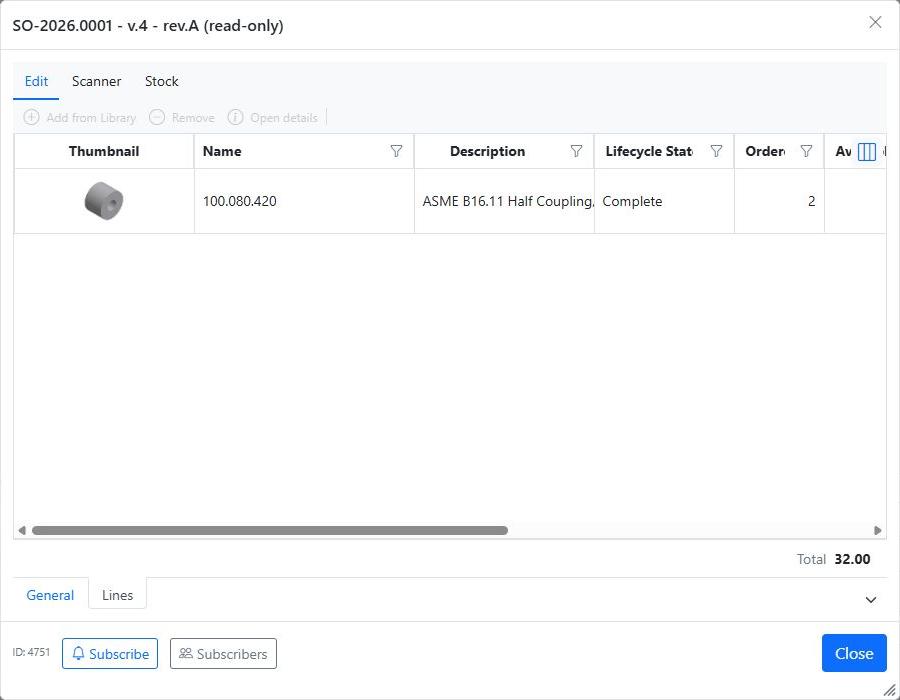
For example, if Ordered is 7 and cumulative Packed is 5, keep the order Confirmed. When the other 2 arrive, pick and pack 2 more, then move the order to Shipped. Cumulative Shipped becomes 7 and Back Order becomes 0.
If the quantities or physical contents are wrong, stop and resolve the discrepancy. The scanner has no standard unpick/unpack action, and cancellation is not a shipment reversal or customer-return workflow. Coordinate changes to an already shipped order with the responsible administrator and Sales.
Result
The dispatched quantity is recorded, stock-item movements have been checked, and any remaining delivery is visible as a backorder. For commercial paperwork, return to the Sales Order invoice document; the standard invoice template uses full ordered quantities rather than one partial dispatch.