Inventor workflow: create an assembly and send its BOM to MatStream
Build an assembly in Autodesk Inventor using existing fittings and a newly created part. Enter the information in Inventor, create an assembly drawing with a parts list, and publish the drawing and BOM to MatStream using the existing iLogic rules.
Flow: Create the assembly → Add existing fittings → Create a new part → Fill in properties → Create the drawing and parts list → Publish with iLogic → Check MatStream.
Before you start
- Have the Inventor files for the existing fittings available, together with their MatStream part numbers.
- Start MatStreamConnect at least once and sign in to the intended workspace.
- Have the existing external iLogic rules available in Inventor, including
MatStream_PublishDrawingand its supporting rules. - Confirm that the Inventor Main Item and Inventor Parts List Import Definitions are configured. If your rules use different profile names, those names must match your Import Definitions.
- Check which properties and parts-list columns your workspace requires, and make sure the target drawing can have its BOM edited in its current lifecycle state.
Install Engineering Project Configuration before Inventor Integration, or select both in the same Setup Wizard run; Engineering runs first. When its Weld Assembly category is present, newly created Inventor profiles automatically receive the engineering settings below, including the Name search keys and STOCK NR source columns. This also works without sample data. Standalone Inventor setup keeps its Drawing target, Part Number property search keys, and Part Number Excel source columns.
If you also seed Engineering Project Sample Data, finish that setup before publishing. The sample catalogue includes 023.713.101 as a Weld Assembly, which remains the BOM parent. The PDF is published as a separate Drawing entity named 023.713.101.pdf and linked under that parent. Do not create another Drawing named 023.713.101 without the extension.
The sample also includes a drawing document named 023.713.101.pdf with the same Part Number. To publish to the assembly, map the metadata source Part Number to Name as the search key in both the main-item profile and the BOM profile's Parent Item configuration. Keep a separate field mapping to the Part Number property. This distinguishes the assembly's Name (023.713.101) from the drawing document's Name (023.713.101.pdf).
For installation, rule setup, and field mappings, see Inventor BOM import and MatStreamConnect.
Settings verified with the engineering sample
The local test used the existing drawing 023.713.101.idw and its five-row parts list. The assembly-building steps below describe a separate example with elbows, flanges, and a new pipe; use the following settings when repeating the tested drawing publication.
- In Manage → Setup Wizard, apply Engineering Project Configuration, Engineering Project Sample Data, and Autodesk Inventor / MatStreamConnect under Integrations. Wait for setup to finish.
- Open the intended workspace in MatStream. In Configuration → Import Definitions, verify the two seeded profiles against the settings below. New profiles receive these settings automatically when Engineering is installed. Existing profiles are preserved when setup is rerun: older workspaces, or workspaces where Inventor was installed before Engineering, need the profile edits below once.
- In MatStreamConnect, sign in to that same workspace. The latest local test used WPS Seed Verification, workspace slug
0cmro4, athttps://localhost:7053/w/0cmro4. Its Core API washttps://localhost:7273and tenant API washttps://localhost:7239. Verify the connected workspace name and slug before publishing; use your own workspace address outside this test. - In Inventor, make the saved drawing active and confirm that the installed rules use the profile names shown below.
| Profile setting | Inventor Main Item | Inventor Parts List |
|---|---|---|
| Configuration | Main Item | Children from Excel |
| Source | Metadata | Excel |
| Target category | Weld Assembly for this sample | Existing parent located from metadata |
| Default child category | Not applicable | Part |
| Default link category | Not applicable | Leave empty; reuse an existing matching placement, otherwise link the Library part directly |
| Header / first data row | Not applicable to metadata | 1 / 2 |
| Parent search key | Metadata Part Number → system field Name |
Parent Item: metadata Part Number → system field Name |
Keep the main-item field mappings Part Number → Part Number, Description → Description, and Company → Manufacturer. The Name search key and Part Number property mapping are separate mappings.
In Inventor Main Item, make the metadata Part Number → Name mapping the search key (key order 1). The separate Part Number → Part Number property mapping must not be a search key. In Inventor Parts List → Parent Item, change the seeded Part Number property search key to metadata Part Number → system field Name (key order 1). Keep the child search key on the BOM configuration separate from this parent key.
These settings are now seeded automatically for new profiles in engineering workspaces. Older profiles and standalone defaults search by the Part Number property, which is shared by the sample assembly and its PDF. During the 0cmro4 test, before this seed update, leaving those defaults produced Key matches 2 existing items - cannot choose one for the drawing and Parent entity '023.713.101' is ambiguous without a resolvable project for the BOM. For an existing profile with these errors, apply the Name keys above, the Weld Assembly target category, and the Excel mappings below before retrying.
On the Parts List (BOM) configuration, use these source headings exactly:
| Excel source | Mapping | Target |
|---|---|---|
STOCK NR |
Child search key | System field Name |
STOCK NR |
Field | Part Number property |
DESCRIPTION |
Field | Description property |
QTY |
Link quantity | Qty |
MATERIAL |
Field | Material property |
Leave POS (or ITEM) and R unmapped in this tested configuration. Apply and save the profile changes before publishing.
The installed PDF rule MatStream_PublishDrawingAsPdf must use profileName = "Inventor Main Item". The BOM rule MatStream_PublishDrawingPartsList must use profileName = "Inventor Parts List". The tested BOM rule used updateLatestVersion = False, so it did not pass --update-latest-version; parent version creation follows the publisher's change rules.
1. Create and save the assembly
Create an Inventor assembly using your normal assembly template. Give it a unique number and save the assembly file in your project location.
For this example, build a small pipe assembly containing two existing elbows, two existing flanges, and one new connecting pipe. Use fittings and dimensions suitable for your own design.
2. Place the existing fittings
Place the existing fitting files in the assembly. Position and constrain them as required, reusing the same component file for repeated instances of the same fitting.
Check each fitting's Part Number against the existing item in MatStream. The value exported from Inventor must match the key used by the parts-list Import Definition to find that item. A filename or description alone is not enough unless your profile explicitly uses it as the key.
Review the other mapped properties too: publishing can update an existing item's information. Resolve incorrect or outdated fitting data before exporting.
Check: Both elbows refer to the same fitting identity, both flanges refer to the same fitting identity, and their quantities will reflect how many are used.
3. Create the new part
Create the connecting pipe as a new part, either within the assembly or as a separate part that you then place. Model it to fit the assembly, assign its material, and save the new part file.
Give the part a unique Part Number using your organization's numbering convention. Do not reuse an existing fitting's number for a different design. Add a clear description so the new item can be recognized in the drawing and in MatStream.
Finish positioning and constraining the components, then save the assembly and all changed parts.
4. Fill in the required information in Inventor
Open the relevant documents' iProperties and fill in the fields required by your import profiles. Check the source properties rather than relying only on text typed into a drawing or a parts-list cell.
| Document | Information to check |
|---|---|
| Existing fittings | Existing Part Number, Description, and any mapped material or other required properties |
| New part | Unique Part Number, Description, Material, and any additional mapped properties |
| Assembly | Assembly Part Number, Description, and applicable revision and project information |
| Drawing, once created | Drawing Part Number, Description, Revision Number, and required author, title, or project information |
The standard metadata rule reads the drawing's own iProperties. Do not assume that filling in the assembly properties also fills in the drawing properties. The supplied rule exports Part Number, Description, Revision, Author, Title, Designer, Company, and Project; your Import Definition decides which values are used.
Use the drawing number convention agreed for your workspace. Its mapped key identifies the parent that receives the PDF and BOM in MatStream.
5. Create the assembly drawing and parts list
Create a drawing from the assembly using your normal drawing template. Add the views, dimensions, and annotations needed to explain the assembly, and fill in the drawing's iProperties.
Add an Inventor Parts List based on the assembly. Choose the BOM view appropriate for your process, then check that the list includes both the existing fittings and the new part. Add balloons where needed and check that they correspond to the parts list.
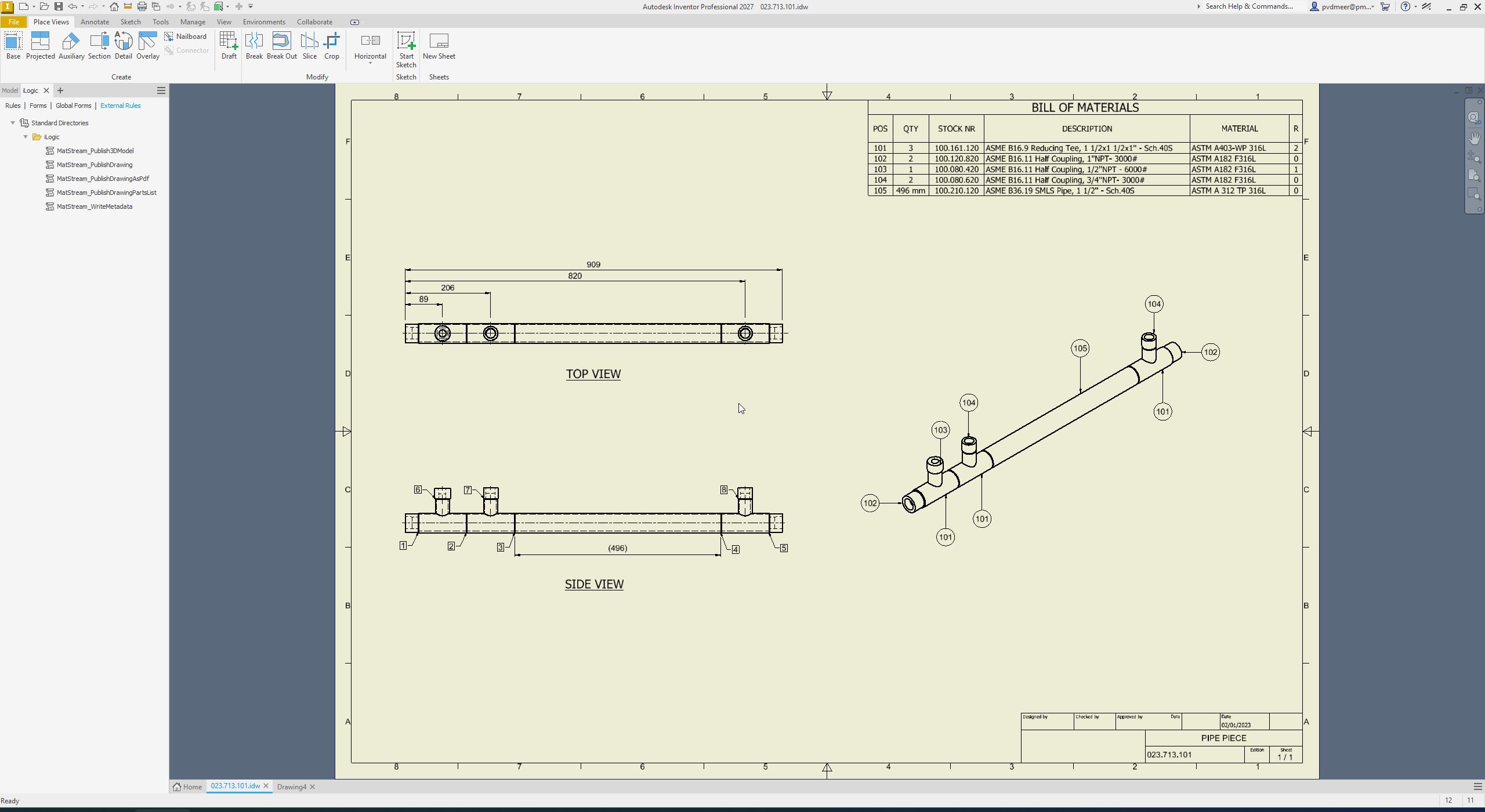
The drawing used for publication testing. Its parts list uses STOCK NR for the component number and includes a pipe quantity of 496 mm.
Make the parts-list column headings match the source columns expected by Inventor Parts List. Typical columns are Part Number, Description, QTY, and Material. The import profile must map the quantity column correctly.
For an existing drawing whose part-number column is titled STOCK NR, use STOCK NR as the source column for both the child search key and the Part Number field mapping. Keep the parent metadata key as Part Number: the drawing metadata and the exported parts list use separate source names. A quantity such as 496 mm carries both the numeric quantity and its unit; check both in the imported BOM.
For the example assembly, a parts-only list should contain:
| Component | Identity | Quantity |
|---|---|---|
| Elbow | Existing fitting part number | 2 |
| Flange | Existing fitting part number | 2 |
| Connecting pipe | New part number | 1 |
Check that no intended component has been excluded from the BOM and that repeated fittings have the expected total quantity. Review the drawing and save all documents before publishing.
Which parts list is exported?
The documented iLogic rule exports the first parts list it finds, searching the drawing sheets in order. For this workflow, use one parts list containing the complete intended BOM. Additional parts lists are not automatically combined.
The ITEM column is a balloon position, not a part identity. Do not map it to a part property; see the Import Definition guidance.
6. Publish using the existing iLogic rule
With the saved drawing active in Inventor, run the external rule MatStream_PublishDrawing.
The existing rules:
- Write the drawing's iProperties to a metadata file.
- Export the drawing to PDF and publish it through Inventor Main Item.
- Export the drawing's parts list to Excel and publish its rows through Inventor Parts List.
The drawing command creates or updates the parent from the main-item profile, then publishes the PDF as a separate Library Drawing entity using its filename, including .pdf. For example:
023.713.101                 Weld Assembly / BOM parent
  023.713.101.pdf           Drawing document, with the PDF attached
  100.080.420               BOM component
  ...
Later publishes reuse the Drawing entity and its current parent link; changed PDF content updates that document through the normal file versioning behavior. The PDF is not attached directly to the assembly. The paperclip therefore appears on the drawing document, while the assembly only shows one if it has another direct file attachment.
Use updated versions of both MatStreamConnect and the tenant API. The workspace must have a Library Drawing category that allows direct file attachment; the Inventor setup provides it. If the old publishing behavior attached a PDF with the same filename directly to the parent, a successful publish stores and links the separate document first, then removes that matching parent attachment. Unrelated attachments, such as a native assembly model, remain in place.
MatStreamConnect handles the transfer. Open its Activity log and check the results of both publish-drawing and publish-children. Wait for both operations to finish and resolve any row errors before treating the transfer as complete.
If your setup already runs this rule on After Save Document, saving the drawing may start publication automatically. Check the Activity log before running it again.
7. Check the drawing and BOM in MatStream
Find the parent using the drawing key configured in your Import Definitions, then verify:
- Its properties match the drawing information entered in Inventor.
- A separate Drawing entity named after the PDF appears under the parent's Uses; its attached PDF opens and shows the expected drawing and parts list.
- Its Uses tab, or your configured BOM view, contains the expected components and quantities.
- The existing fittings resolve to the intended existing items.
- The new part is present with the correct number, description, material, and other mapped information.
- Supporting Uses links that were present before publishing are still present.
For the example, check for two elbows, two flanges, and one connecting pipe. The main-item profile determines the parent category; with the engineering sample settings above, the BOM belongs to the Weld Assembly identified by the drawing metadata.
Result: MatStream contains a separate PDF drawing document linked to the BOM parent, with existing fittings reused by their mapped keys and the new part created or updated from its exported row.
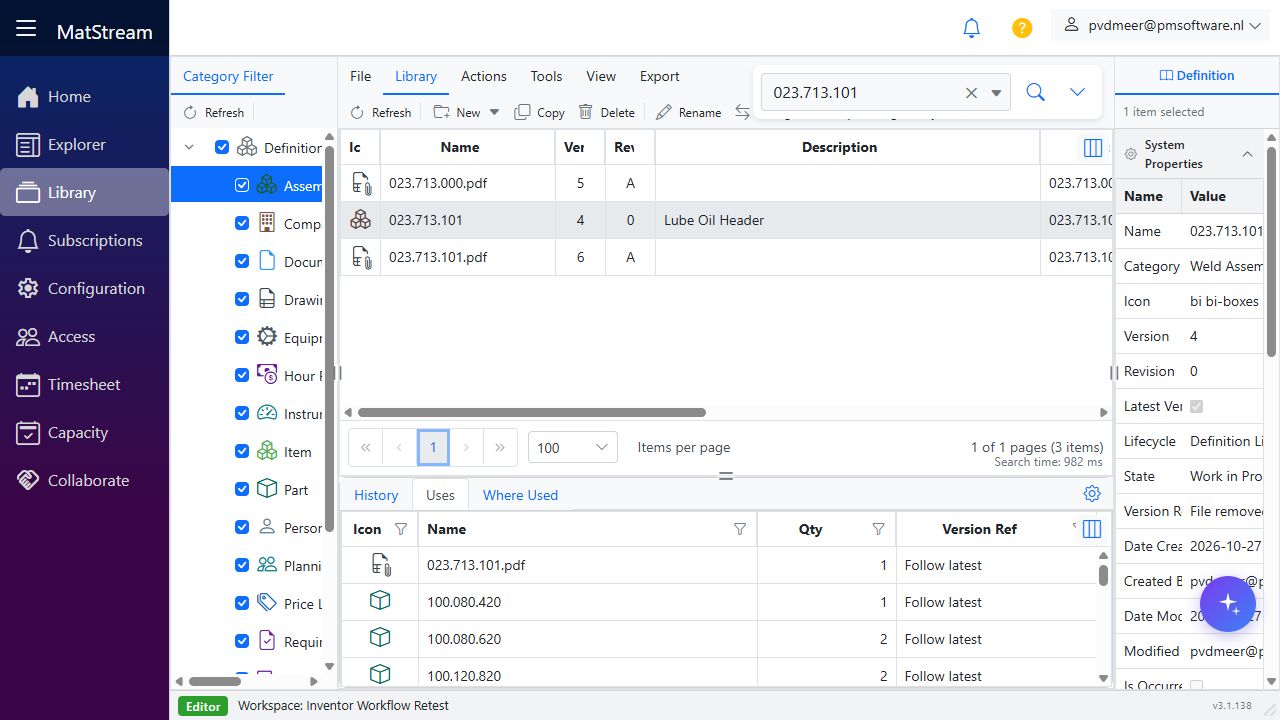
Example after publishing: the assembly remains the BOM parent, while the PDF has its own Drawing entity and attachment.
8. Update the design and publish again
Make design and property changes in Inventor, update the drawing and parts list, and save all affected documents. Run the same publishing rule and repeat the checks in MatStream.
Keep the mapped keys stable when updating the same drawing or part. Changing a key can cause the import to identify a different item. Version behavior depends on the configured rules, including whether the BOM rule uses --update-latest-version.
After removing a component, check that its old BOM line was removed in MatStream. Publishing tracks BOM membership separately for each import profile and parent. It removes only missing components previously published by that profile; supporting Uses links, such as drawings, certificates, suppliers, and WPS links, remain in place. A component still published by another profile also remains linked.
With no Default link category, a BOM row first looks for an existing placement under this parent that references the matched Library part. A single matching placement is reused, including its Uses link and own certificates or other properties, and its quantity follows the exported BOM. If there is no placement, the Library part is linked directly. Multiple matching placements produce a row error rather than choosing one or adding another row. A successful publish tracks the reused placement for subsequent removal checks. If an older publish created a tracked direct Library duplicate, reconciliation removes that duplicate while retaining the placement; links tracked by another profile or with unknown ownership remain protected.
If any row fails, the importer keeps missing old lines linked for that run; fix the errors and publish again. The first successful publish after this tracking is introduced records the current BOM without removing older links whose source is unknown. Review any obsolete legacy links manually.
Administrators must apply tenant migration 20261027_import_bom_children.sql when deploying this change. If reconciliation cannot run, publication reports a warning and preserves existing links.
Example: move manually added welding material into the Inventor BOM
Suppose you add the existing Library part WELD-316L manually to the assembly's Uses grid in MatStream. It represents welding material that is not yet listed in the drawing. Publishing the drawing keeps this relationship: the Inventor BOM profile has never published that component, so it does not treat the manual link as an obsolete BOM line.
To include the same material in Inventor's BOM:
- Add a virtual component for the welding material to the Inventor assembly. Fill in its identifying properties so the drawing's exported STOCK NR value is
WELD-316L. - Update the drawing's parts list and check that the virtual component is included in the exported rows. Its presence in the assembly alone is not enough; the publisher reads the drawing's parts-list export.
- Confirm that the existing MatStream Library item's Name is
WELD-316L. With the settings above,STOCK NRis matched against Name, with a separate mapping to the Part Number property. A matching description alone does not identify the item. - Enter the required quantity in Inventor, save, and run MatStream_PublishDrawing. Wait for a successful BOM publish and check Uses in MatStream.
With the tested configuration, where Default link category is empty, the publisher finds the existing Library part and reuses its direct Uses link to the same parent. It updates the link quantity from the exported BOM rather than adding the manual and Inventor quantities together. Other mapped item properties can also be updated.
| Stage | What happens to WELD-316L in Uses |
|---|---|
| Added manually; absent from the exported BOM | Its manual Uses link remains when the drawing is published |
| Included in a successful BOM publish with a matching key | The existing item and link are reused; that profile now tracks the component for this parent |
| Included in later publishes | Its quantity follows the exported BOM |
| Removed from a later BOM published successfully through the same profile | Its Uses link is removed, unless another BOM profile still tracks that component |
Management by the BOM is recorded internally per profile and parent; it does not create a separate visible "Inventor BOM item" link type. Once the profile tracks this component, its original manual addition does not exempt it from later BOM cleanup. Unlinking it does not delete the welding-material Library item.
If the exported key differs, the importer may create a separate item instead of recognizing the manually added one. If any row fails, cleanup and the recorded BOM membership are not advanced for that run; resolve the errors and publish again. This example describes the expected behavior with the tested mappings; the live checks below used the five-component drawing BOM.
Successful hosted retest: duplicate cleanup and Welds
On 27 October 2026, 023.713.101.idw was republished through Inventor's MatStream_PublishDrawing rule into hosted workspace Inventor Hosted Test (v4hyl7), after deploying the API and web-app fixes. The workspace had been created through hosted Manage and seeded with Engineering Project Configuration, Engineering Project Sample Data, and Inventor Integration. Both Inventor profiles used the automatically seeded engineering settings above; no manual profile changes were made.
MatStreamConnect connected to Core at https://core.matstream.com and the workspace's tenant API at https://api.matstream.com. Entering only v4hyl7 selects the internet service. To test locally, enter an explicit local workspace URL instead, such as https://localhost:7053/w/0cmro4.
| Check | Verified hosted result |
|---|---|
| Duplicate BOM cleanup | 23 → 18 Uses rows: five duplicate direct Library links removed, leaving five unique BOM component placements plus thirteen supporting items |
| Existing placements | The original placements were reused, keeping their component references and quantities: 1, 2, 2, 3, and 496 mm of pipe |
| Supporting relationships | Drawing, certificates, company, and all eight weld placements preserved |
| WPS and weld properties | Same WPS PDF attachment and SHA-256 hash; weld names, WPS references, inherited Part Number and Description, and own QA values unchanged |
| Opening Welds | Initial opening plus three rapid General → Welds switches passed: four checks, zero browser errors or warnings |
| Profiles | Both profiles unchanged before and after publishing |
| Versions | Assembly advanced to version 2 after duplicate cleanup; the separate PDF Drawing remained at version 4 |
The duplicate rows came from the earlier publisher adding Library parts directly alongside the seeded placements. The updated publisher recognizes each placement's linked Library definition and reuses that placement. After every row succeeds, reconciliation removes the extra direct links owned by the same import profile. Unmanaged links and links owned by another profile remain protected; cleanup does not delete the Library parts or the retained placements.
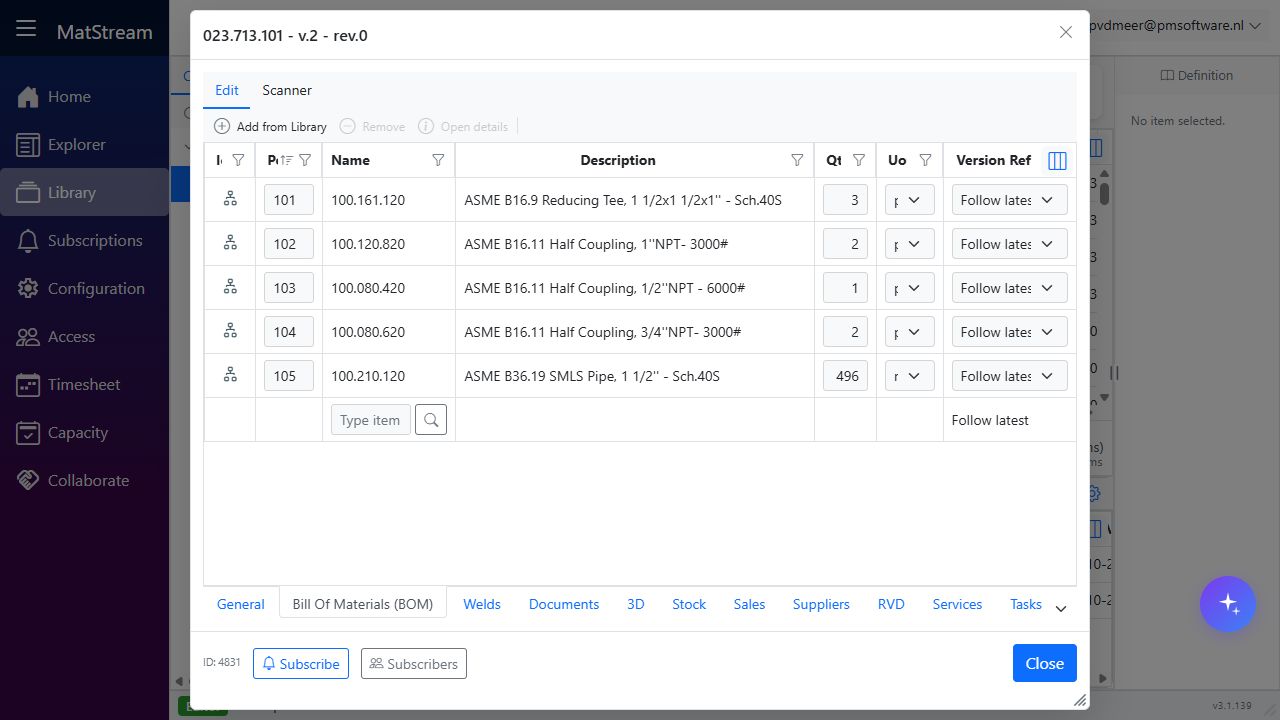
Hosted result after cleanup: one BOM row per component, with the original engineering placements retained.
The earlier Welds error occurred when switching tabs while the General tab's thumbnail editor was still loading. The thumbnail paste handler now tolerates a missing or detached editor, and initialization stops when the editor is disposed. No thumbnail error banner or console error appeared during the hosted retest.
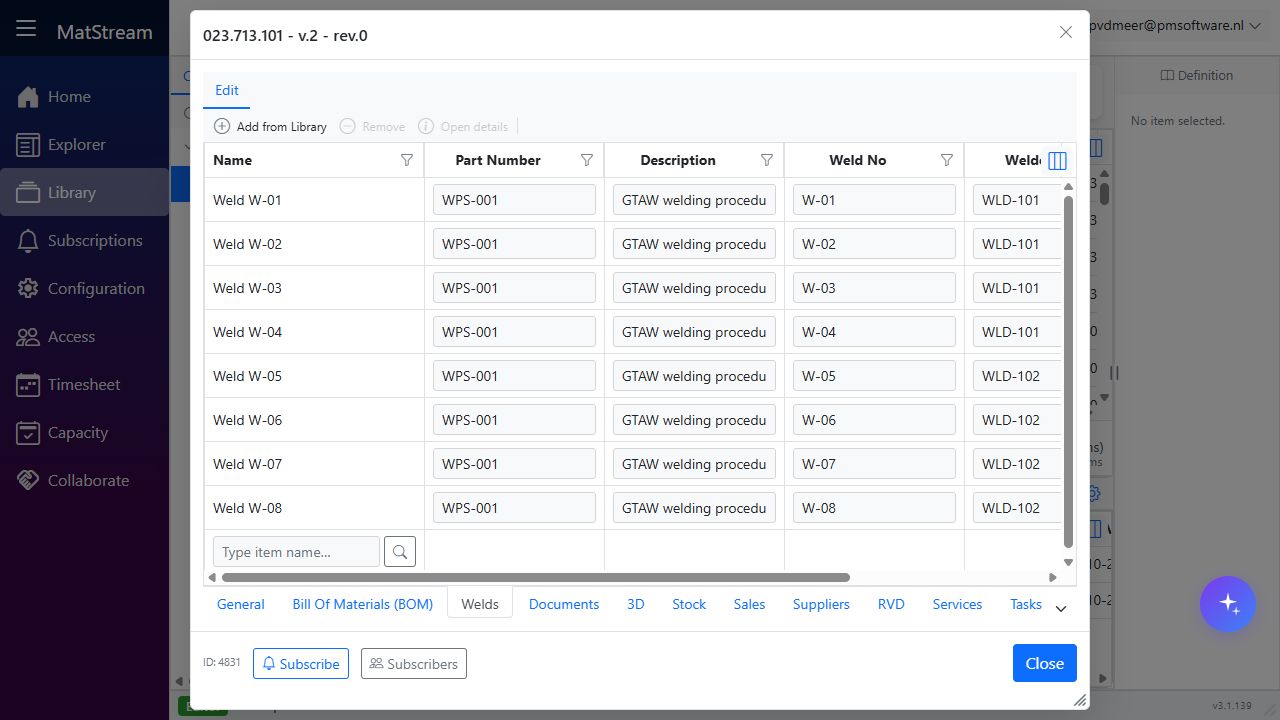
Weld W-01 through Weld W-08 keep their own names, Weld Numbers and Welder IDs while inheriting the WPS reference and description.
To repeat this check after upgrading an older workspace, publish the complete drawing BOM successfully, verify that each component appears once, then open Welds and switch back and forth from General. Check the thirteen supporting items and WPS attachment as well. If a row fails, resolve its error before expecting duplicate cleanup.
Earlier local retest: WPS preservation in 0cmro4
On 27 October 2026, the existing 023.713.101.idw was published through Inventor's MatStream_PublishDrawing iLogic rule into the newly seeded WPS Seed Verification workspace (0cmro4). Engineering sample data was seeded first, followed by Inventor Integration. After applying the profile settings above, both the drawing and five-row BOM published successfully.
The test compared the stored relationships and projected property values before and after publishing, then checked the assembly's Welds tab and the WPS's Attached File tab in MatStream.
| Check | Result in 0cmro4 |
|---|---|
| Separate drawing document | Existing 023.713.101.pdf advanced from version 3 to 4; its link to 023.713.101 was reused |
| BOM publication | Five imported component memberships recorded, including 496 mm of pipe |
| Assembly → weld links | All eight original links preserved |
| Weld → WPS links | All eight original links to WPS-001 GTAW 316L preserved |
| WPS attachment | Same WPS-001-GTAW-316L-DEMO.pdf attachment and SHA-256 hash; the drawing publish did not replace it |
| Inherited properties | Every weld still resolved Part Number = WPS-001 and Description = GTAW welding procedure for 316L stainless steel, without copying those values onto the welds |
| Weld identity and QA values | Weld W-01 through Weld W-08, their Weld Numbers, and individual Welder IDs unchanged |
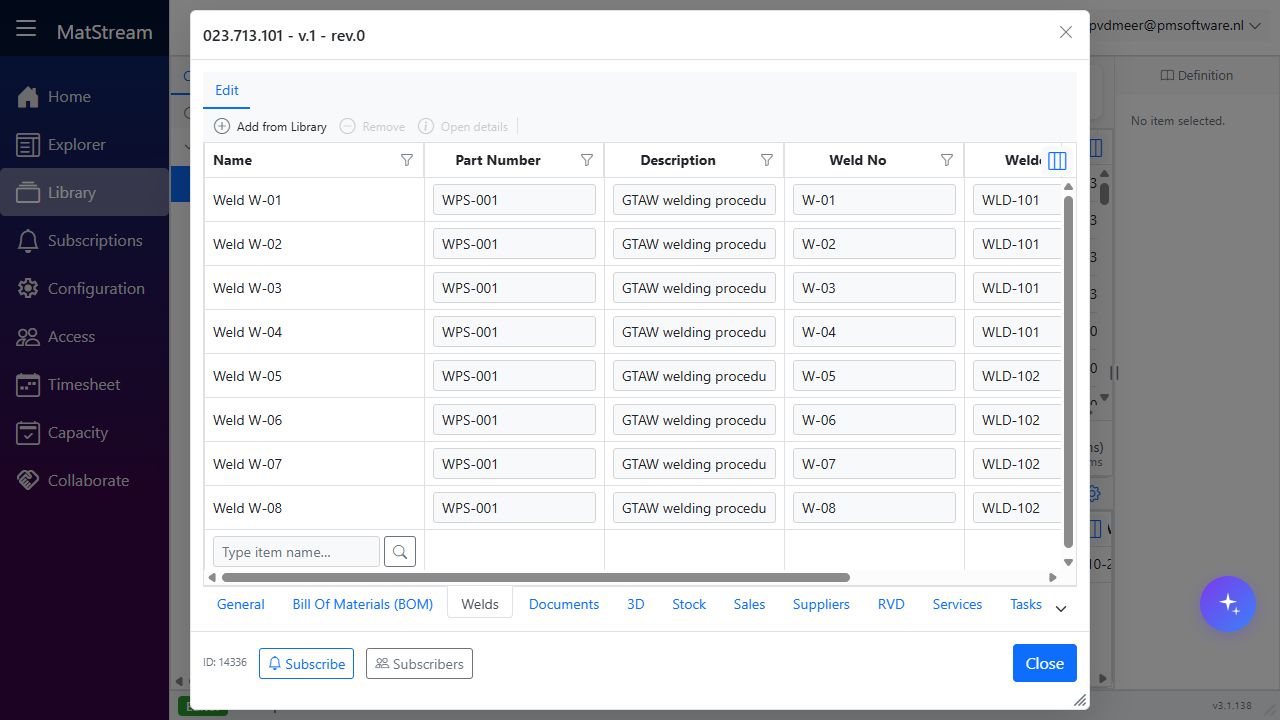
After publishing: the welds keep their own identity and obtain their procedure reference and description from the linked WPS.
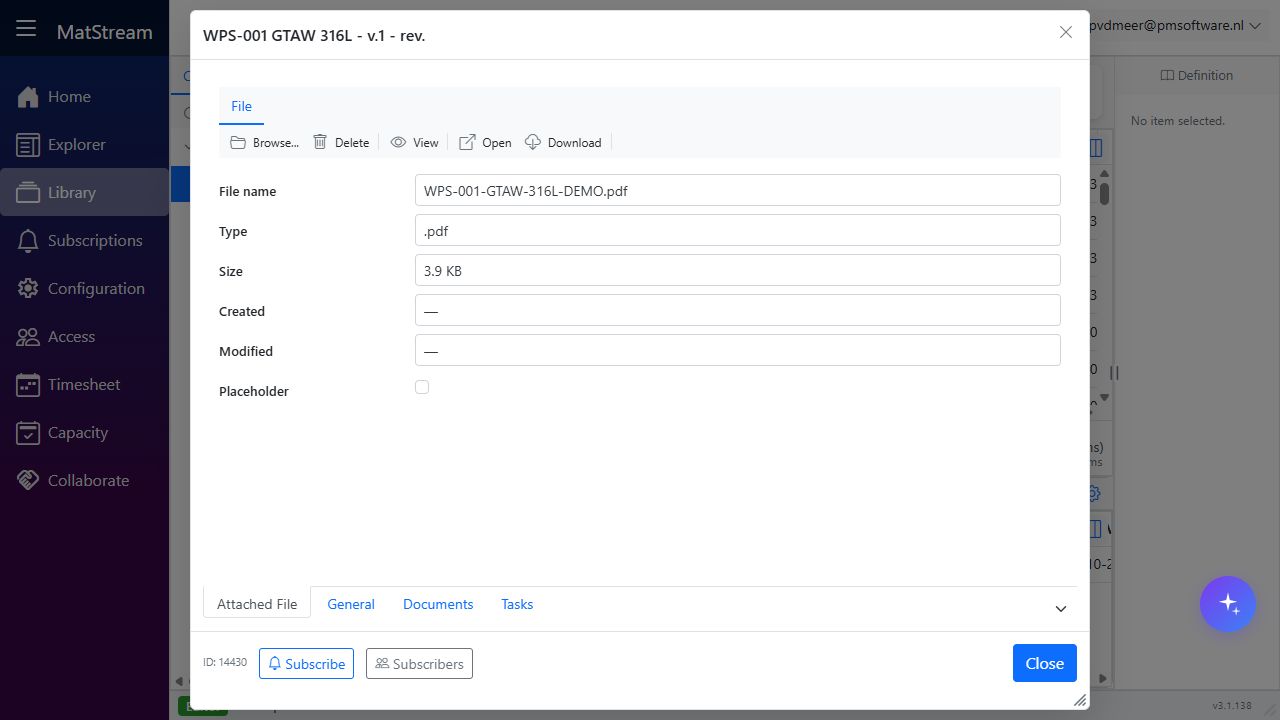
The WPS attachment remains on the WPS record; the newly published drawing PDF belongs to its separate Drawing entity.
This retest preceded the placement-reuse fix: its initial publish retained seeded component placements alongside newly imported direct Library links. The updated publisher reuses those placements and removes direct duplicates previously tracked by the same profile on the next successful full publish. Unknown legacy links remain protected; review obsolete unmanaged links manually.
Earlier removal and error checks
The following checks were performed in the earlier local workspace geob0d. They describe the removal/error scenarios and their starting link counts, separately from the WPS preservation retest above.
For 023.713.101.idw, the tested BOM contained the following components:
| Component number | Quantity |
|---|---|
100.080.420 |
1 |
100.080.620 |
2 |
100.120.820 |
2 |
100.161.120 |
3 |
100.210.120 |
496 mm |
The starting Uses view also contained thirteen supporting links: 023.713.101.pdf, Inspection and Test Plan, Material Certificates (EN 10204 3.1), My Company BV, Pressure Test Certificate, and eight weld placements linked to WPS-001 GTAW 316L. These links are outside the BOM profile's imported membership and must remain linked.
Welds retain their own names, Weld W-01 through Weld W-08. Their Part Number (WPS-001) and Description (GTAW welding procedure for 316L stainless steel) fall back to the linked WPS through property-level inheritance. Weld No, Welder ID, Weld Date, NDT Method, NDT Result, and lifecycle state stay specific to each weld. The WPS uses the shared Part Number property instead of a separate WPS Number field; migration 20261027_wps_weld_properties.sql preserves existing WPS numbers and authored descriptions when upgrading an existing workspace.
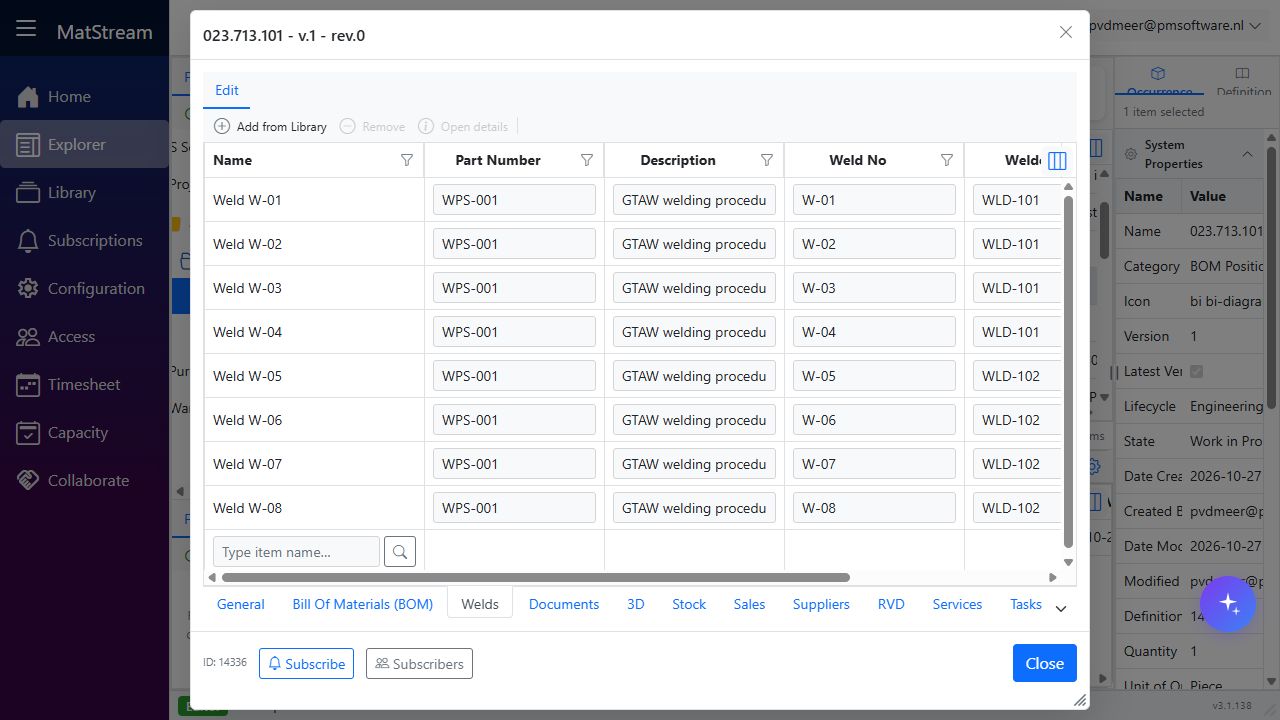
Fresh-workspace verification: each weld keeps its own Name; the procedure reference and description come from the WPS.
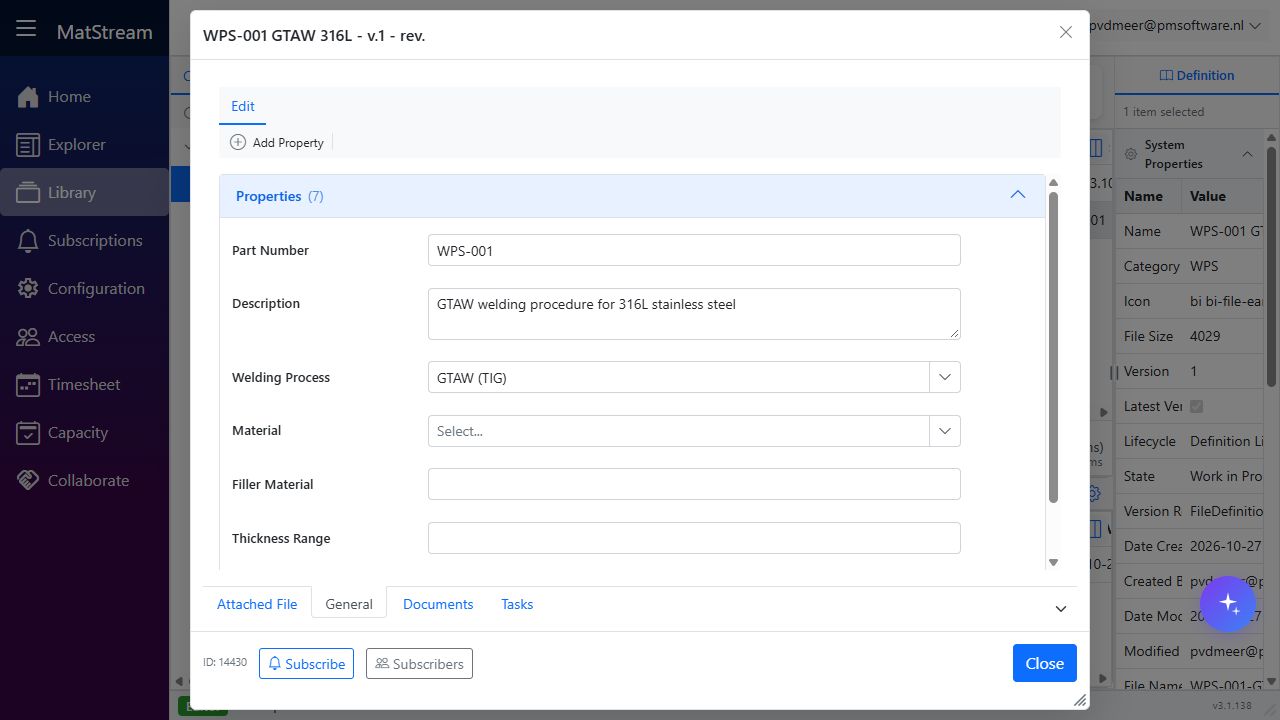
The shared values are maintained on the WPS record rather than copied into every weld.
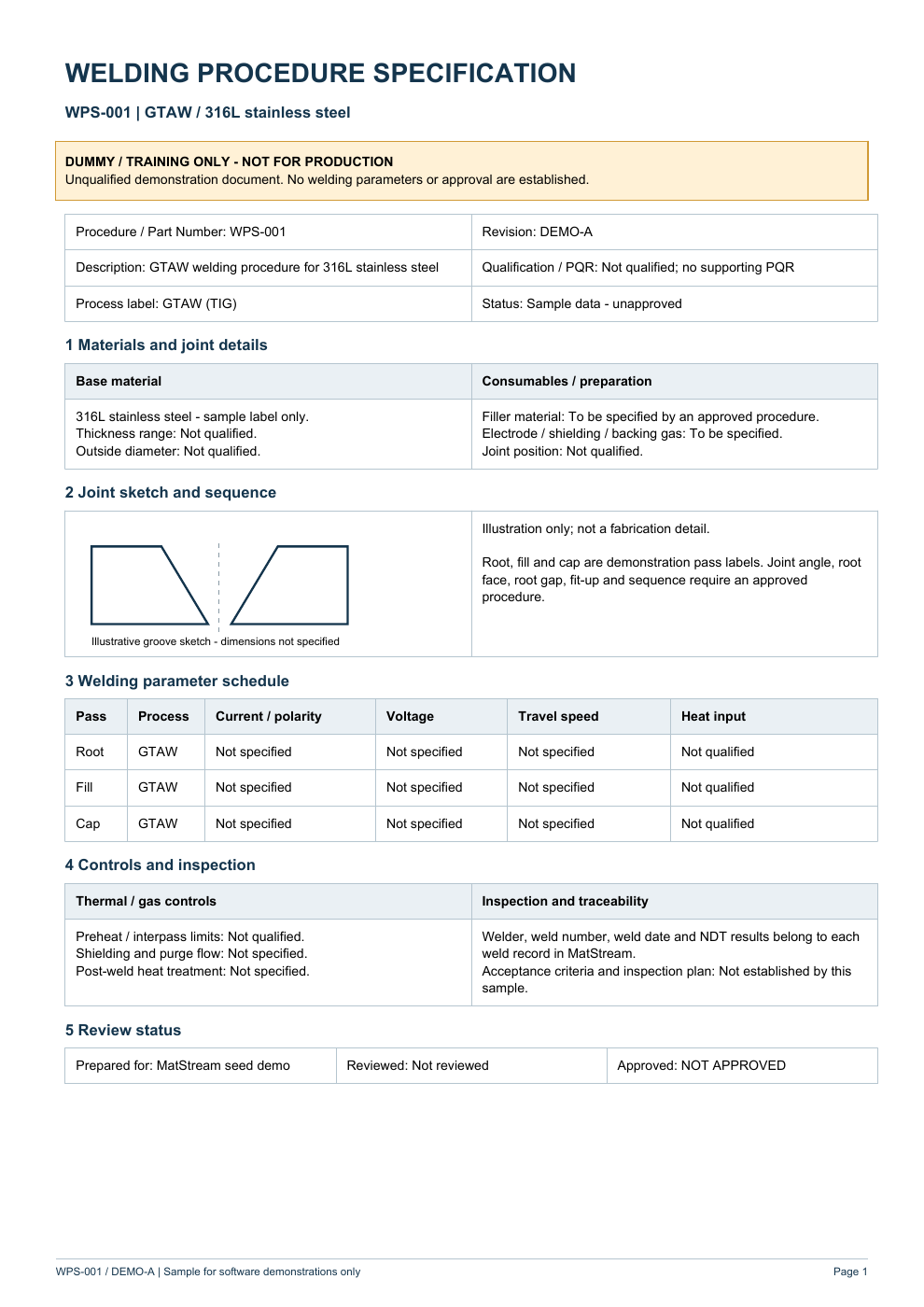
Engineering sample setup also attaches WPS-001-GTAW-316L-DEMO.pdf directly to the sample WPS record. Open that WPS's Attached File tab to view it. The document is marked DUMMY / TRAINING ONLY - NOT FOR PRODUCTION and contains no qualified welding parameters. Rerunning setup fills an empty WPS attachment slot but preserves any file already attached.
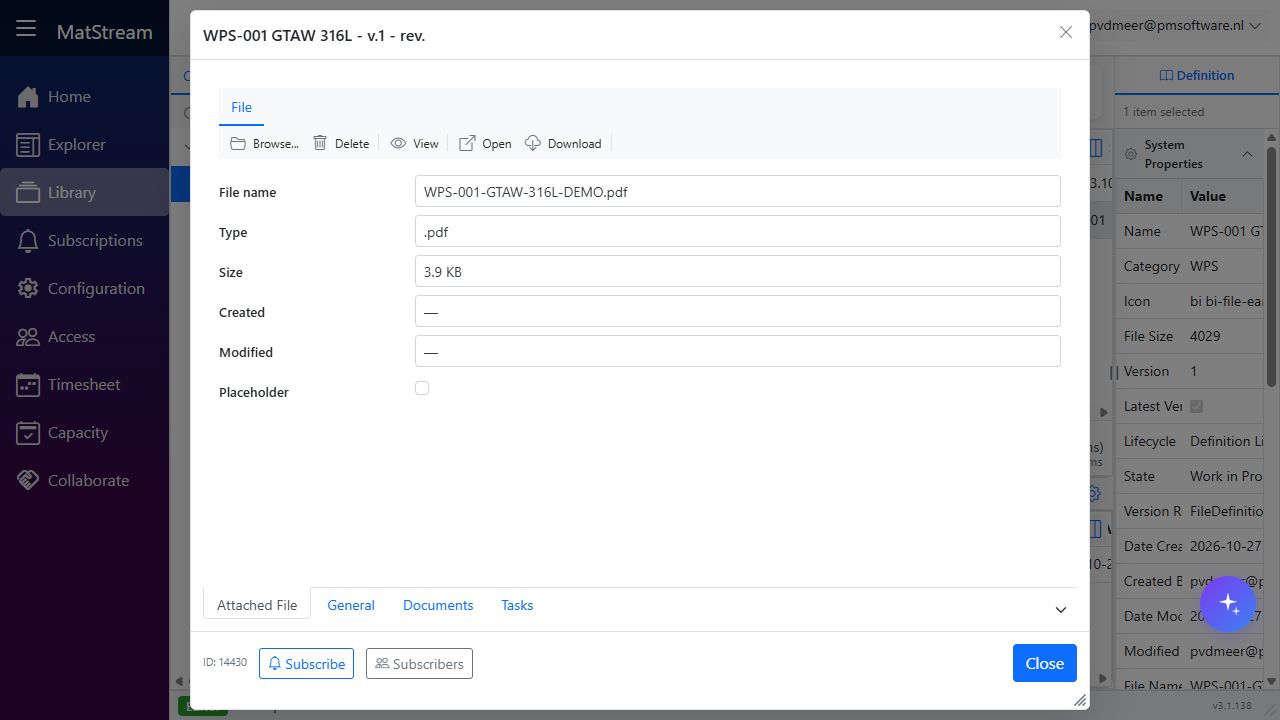
The sample PDF is attached directly to the WPS entity. It is not an extra BOM component.
| Check | Verified result |
|---|---|
Run MatStream_PublishDrawing |
PDF published on the separate linked Drawing document, zero BOM row errors; five components plus thirteen supporting links (18 Uses rows) |
| Publish the same BOM again | All 18 Uses rows and their quantities unchanged |
| Publish a test export with one invalid child key and the pipe row omitted | Row error reported; cleanup skipped; all 18 Uses rows and the previous five-component membership retained |
| Publish a valid test export with the pipe row omitted | Only 100.210.120 unlinked; four components plus thirteen supporting links (17 Uses rows) |
| Run the original drawing's full publishing rule again | Complete five-component BOM restored, including 496 mm of pipe; all thirteen supporting links preserved (18 Uses rows) |
For the removal and error checks, use copies of the exported Excel BOM in a test workspace. The local test changed those copies and left the Inventor design unchanged. Publish a copy through MatStreamConnect using the same profile and drawing metadata:
& '<path-to-MatStreamConnect.exe>' --publish-children `
  --profile 'Inventor Parts List' `
  --metadata '<path-to-023.713.101_meta.json>' `
  --bom '<path-to-test-BOM.xlsx>'
Wait for each operation to finish in Activity before starting the next check. After testing, publish from the original drawing and verify the full BOM in Uses. Repeated publication can report 0 inserted, 0 updated, 0 errors when the part data is unchanged; also check the actual links and quantities.
If something does not work
- No parts list is found: add an actual Inventor Parts List to the drawing; a manually drawn table is not the exported BOM.
- An existing fitting is duplicated: compare the exported key value with the existing MatStream item and check the profile's key mapping.
- Multiple existing BOM placements reference the same Library item: review those placements under the parent and resolve the intended identity/quantity before publishing. The publisher leaves missing old lines linked while any row is ambiguous.
- Every row reports that its child name cannot be determined: check the actual exported column headings. For example,
STOCK NRdoes not match the seededPart Numbersource column. - The PDF rule reports that
Inventor Itemis missing: align the installed rule's profile name with the configured definition, normallyInventor Main Item. - Drawing properties are blank or the parent cannot be found: check the drawing's own iProperties and the parent-key mappings in both import profiles.
- The key matches two items or the parent is ambiguous: for the engineering sample, use metadata
Part Number→ system Name as the parent search key in both profiles. Keep the main-item Part Number property mapping as a non-key field and target Weld Assembly. See the verified settings above. - A component or quantity is wrong: inspect the assembly BOM and the drawing's exported parts list, including exclusions and column mappings.
- A row has no category: ask the administrator to check the default child category and category assignment rules.
- Parts import but are not linked: check the Activity error and whether the parent's lifecycle state permits BOM changes.
- An old link remains after removing a BOM row: confirm that an earlier successful publish recorded that component under the same profile and parent. Unknown legacy links and components still owned by another profile are preserved. Resolve any row errors before expecting cleanup.
- Activity warns that link reconciliation failed: ask the administrator to verify the tenant migration and database error, then publish again. Existing Uses links are retained when reconciliation fails.
For more log messages and fixes, see Inventor BOM import troubleshooting.
Related help
- Inventor BOM import — existing rules, profiles, and export details
- Import Definitions — keys, field mappings, and categories
- Uses & Where Used — inspect component relationships
- Inventor 3D model — optionally publish a part or assembly's 3D model using the separate rule