Create and confirm a Sales Order
Department: Sales. Create a customer order, check its prices and stock demand, confirm it, and prepare its invoice document. This workflow ends with the handoff to Procurement and Warehouse.
A Sales Order is the customer's demand. Its lines connect the ordered articles, quantities and prices to the same entity structure used throughout MatStream. Categories, lifecycle states and permissions determine who can change each part of the order.
Confirmation is a handoff
Confirmed means the order and its demand have been recorded. It does not mean the goods have arrived, been picked, or been shipped.
Find open orders
Open Sales → Open Sales Orders to see Sales Orders across the workspace, excluding Shipped and Cancelled (also Canceled in workspaces using that spelling). This is a live filter folder. Its query is saved on that folder entity, and setup reruns preserve your edits.
The standard Sales Order Lifecycle has Draft → Confirmed → Shipped, with Cancelled available from Draft or Confirmed. Keep an order Confirmed until all quantities are packed for shipment.
Before you start
In manage.matstream.com, create or select your workspace and open Setup Wizard:
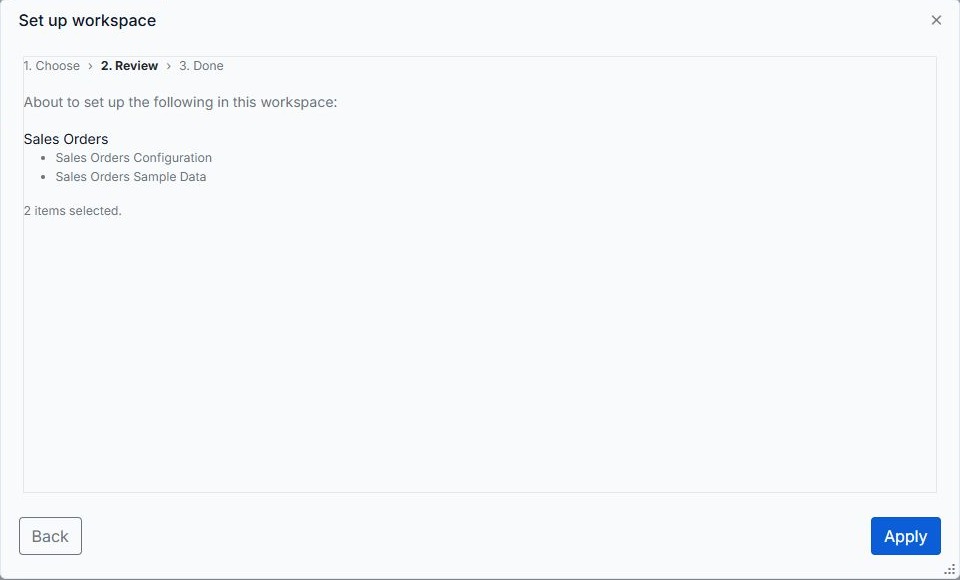
- Select Sales Orders Configuration. For a practice workspace, also select Sales Orders Sample Data.
- Clear the other templates if you only want the Sales Orders setup.
- Click Next, check the selected items, and click Apply.
- Wait for Setup complete, then click Open MatStream.
The setup provides the order categories, lifecycle, pricing, stock locations, and purchasing configuration. Sample data includes articles, suppliers, and a sample EUR price list.
Your user needs the appropriate permissions for sales, warehouse, or purchasing work. Articles should have the correct stock unit, stock settings, and prices before you use them on an order. The sample article used here needs its Stock Unit set to Piece (pc) before stock reservation can work. Selecting pc on the order line alone does not configure the article's stock unit.
1. Create a Sales Order
In Explorer, open Sales → Sales Orders and create a Sales Order. It starts in Draft and receives an order number automatically.
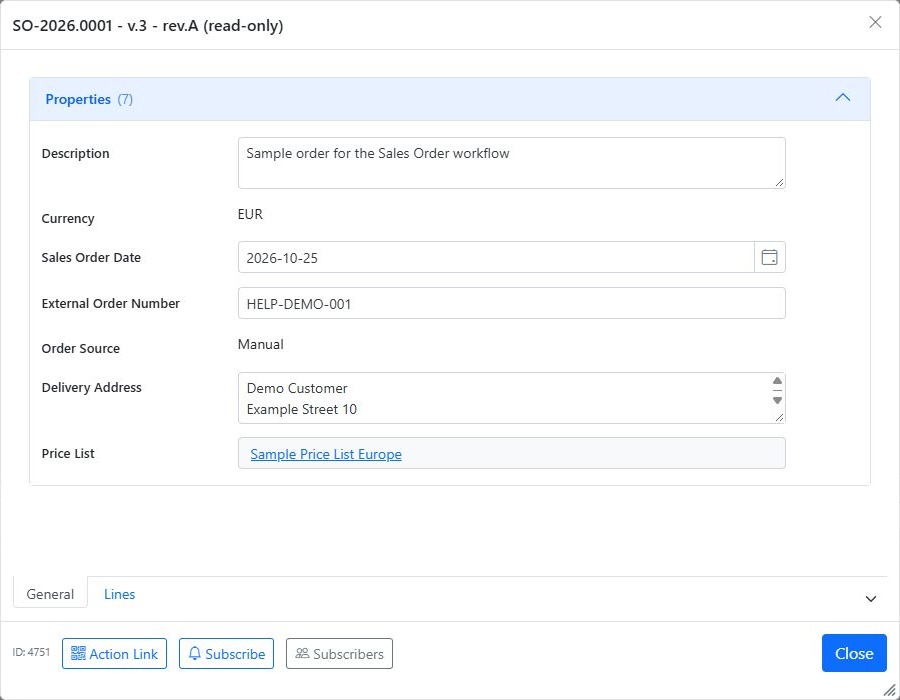
Enter the order date, external order number, order source, delivery address, and currency. Select the appropriate Price List if you use price-list pricing. The seeded order sources are Website and Manual; choosing a source records where the order came from.
2. Add the order lines
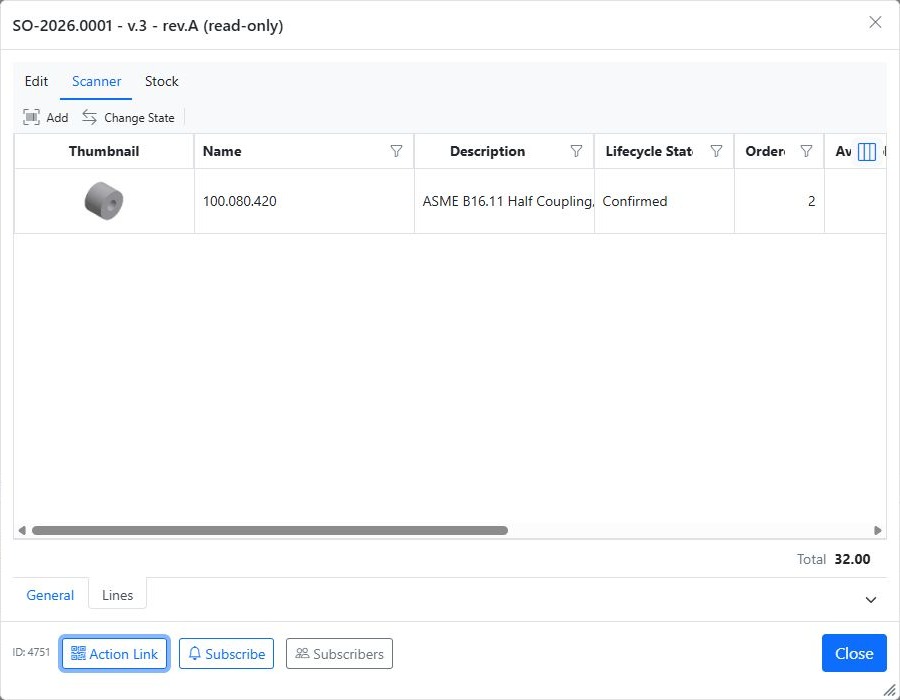
Open the order's Lines tab and add articles from the Library. For each line, review the quantity, unit, and unit price. MatStream calculates the line total and shows the order total at the bottom of the list.
Check the prices and delivery address while the order is still in Draft. Save the order with Save and Close before confirming it.
For example, the sample article 100.080.420 has a unit price of EUR 16. Ordering 2 pc gives a line total of EUR 32.
3. Review stock availability
On the Lines tab, open Stock → Stock availability. Review the required quantity, available stock, reservations, and shortages for each article.
Available stock means stock on hand minus existing reservations. Correct any unit or configuration errors before confirming the order. Reviewing this window does not itself reserve stock.
4. Confirm the order
Close the order details, select the Sales Order in Explorer, and choose Change State. Set its New State to Confirmed, click Apply, and check the result.
MatStream confirms the lines and handles their stock demand:
- Stock items: reserves the remaining order demand. Shortages are handled through stock replenishment; available stock can become negative.
- Other articles: reserves available stock and creates Material Requirements for the shortages, beneath the relevant order lines.
Confirmation records demand; it does not mean that every article is physically ready to ship.
5. Create the Sales Order invoice document
The setup also provides Sales Order - Draft Invoice - A4 Portrait. Select the Sales Order in Explorer, open Export, choose this template, and generate a PDF or editable Word document.
It fills the order reference, delivery address, article descriptions, ordered quantities, unit prices, line amounts, currency, and net order total. It uses the full ordered quantities, not the quantities in one partial shipment.
The document is marked DRAFT INVOICE. Complete and verify the seller and customer billing details, invoice number and date, tax/VAT, total payable, and payment details before issuing. These details are not calculated by the template. Generating it does not create an accounting invoice or mark the order as paid.
Invoice document and accounting invoice
The standard template creates a draft full-order invoice. Generating it does not post an invoice, calculate VAT, record payment, or ship goods. Your invoicing process must complete and approve the billing details before issue.
Result and next department
The Sales Order is Confirmed, its lines and prices have been reviewed, and the draft invoice document can be prepared. Keep the Sales Order number available when following up with other departments.
| Department | Next workflow |
|---|---|
| Procurement | Arrange missing stock |
| Warehouse receiving | Receive goods into the warehouse |
| Warehouse dispatch | Open orders, picking, packing and sending |
If an unshipped order will not proceed, Sales can change it from Draft or Confirmed to Cancelled. Cancellation releases its reservations; it does not undo a previous shipment or automatically cancel a supplier's PO. Coordinate purchased goods with Procurement.